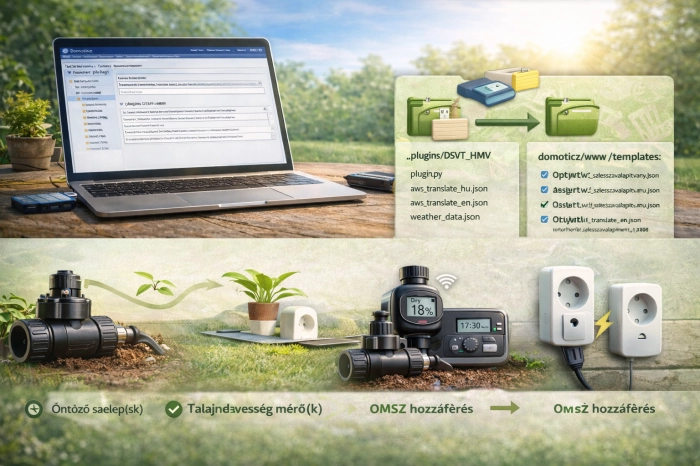
AWS_OA (Automatic Watering System) is an open-source, Python-based irrigation control plugin for Domoticz.
The system supports scheduled irrigation, soil moisture sensors and precipitation monitoring using weather data from Open-Meteo.
The plugin and its web-based viewer files are available on GitHub:
Domoticz Automatic Watering System – GitHub
If you are using our Szélessáv SmartHome OpenWrt firmware and your firmware version already includes the AWS_OA plugin, no separate installation is required.
In this case, simply create the irrigation controller in the Domoticz hardware settings and enter the identifiers of the switches and sensors you want to use.
For weather-dependent operation, you should also verify the geographical coordinates configured in Domoticz.
AWS_OA can also be used with other Domoticz installations that support Python plugins.
The following are required:
A soil moisture sensor is optional. The plugin can operate without one, using scheduled or weather-dependent irrigation.
The exact directory paths depend on the operating system and the Domoticz installation method.
If Git is installed on your system, the repository can be cloned directly into the Domoticz plugin directory.
The following example uses the directory structure of our Szélessáv OpenWrt system.
cd /etc/domoticz/plugins git clone https://github.com/szelessavalapitvany/Domoticz-Automatic-Watering-System.git AWS_OAThis creates the following directory:
/etc/domoticz/plugins/AWS_OA/This directory contains the files required by the Python plugin, including plugin.py and the available aws_translate_*.json language files.
The irrigation controller also includes a separate HTML-based monitoring interface. The corresponding files must be copied into the Domoticz www/templates directory.
cp -r /etc/domoticz/plugins/AWS_OA/viewer/* /usr/share/domoticz/www/templates/The main viewer files include:
AWS_Ontozo_Automatic_watering.htmlaws_viewer.jsaws_html_translate_*.json language filesThe web viewer is not required for the basic operation of the Python plugin, but it is necessary to use the custom graphical interface.
On OpenWrt devices and other systems with limited storage capacity, cloning the entire Git repository may not always be practical.
Git also stores version control history in the .git directory, which requires additional storage space.
In such cases, the latest project files can be downloaded from GitHub using Code → Download ZIP.
After extracting the ZIP archive, copy the plugin files into the Domoticz plugin directory and the contents of the viewer directory into the Domoticz web template directory.
This method avoids storing Git version control data on the device.
AWS_OA retrieves precipitation information from the Open-Meteo weather service.
Weather data is requested using the geographical coordinates configured in Domoticz.
Open the following menu:
Setup → Settings → System
Check the latitude and longitude values and update them if necessary to match the actual installation location.
Our custom firmware may contain the coordinates of our Budapest office as its default settings. These should therefore be checked whenever the system is installed at a different location.
Important: Open-Meteo does not require a separate OMSZ or ipdns.hu account, nor does it require a weather service username or password.
AWS_OA uses the Domoticz HTTP API to read sensor measurements and control switching devices.
If the plugin runs on the same device as Domoticz, the following settings can usually be used:
Domoticz IP Address: 127.0.0.1 Port: 8080If Domoticz is running on a different port, enter the actual port number.
The plugin also supports username and password authentication if the Domoticz API requires authentication.
Local API access can also be configured in the Domoticz security settings:
Setup → Settings → Security → Trusted Networks
If necessary, 127.0.0.1 can be added to the list of trusted local addresses. Only addresses that are genuinely trusted should be allowed.
After installing the files, restart the Domoticz service and open:
Setup → Hardware
Select the following hardware type:
Automatic watering system / Öntöző automata
Enter a name for the new hardware device and complete the required configuration fields.
Enter the Domoticz HTTP API address. The default local address is 127.0.0.1, and the default port is 8080.
If Domoticz API authentication is required, enter the appropriate credentials.
Enter the Domoticz device identifiers (IDX) of the switches or valves controlling irrigation.
If multiple devices are used, separate their identifiers with commas.
For example:
123,124,125All listed switches are controlled together, meaning they are activated simultaneously when irrigation starts.
Enter the Domoticz IDX identifiers of the soil moisture sensors.
If multiple sensors are configured, their measured values are averaged by the system.
If no soil moisture sensors are used, this field can be left empty.
This setting controls the amount of information written to the Domoticz log. Normal is recommended for everyday operation.
More detailed logging options are available for troubleshooting.
Almost any suitable on/off switching device integrated into Domoticz can be used to control irrigation valves.
Examples include:
When selecting a suitable device, consider its load capacity, operating voltage, outdoor protection and switching reliability.
When controlling well pumps or other high-power electrical equipment, particular attention must be paid to the switching device's electrical rating. A suitable contactor should be used where necessary.
If the irrigation controller is too far from the Wi-Fi access point, powerline networking may provide a solution.
This technology uses existing electrical wiring for data communication, allowing a wired network connection to be established without installing additional Ethernet cables, provided that the electrical installation is suitable.
Zigbee technology is particularly suitable for battery-powered sensors because it is designed for low-power operation.
Depending on device type, measurement frequency and environmental conditions, battery-powered Zigbee soil moisture sensors may operate for an entire irrigation season without a battery replacement.
Device compatibility should be checked before installation.
Zigbee2Domoticz compatible devices
After installing or updating the Python plugin, the Domoticz service must be restarted.
/etc/init.d/domoticz restartsudo systemctl restart domoticzAfter restarting, refresh the Domoticz interface in your browser.
If the web viewer or translations do not update, perform a hard refresh or open the interface in a private browsing window.
New versions of AWS_OA are published in the GitHub repository.
If the plugin was installed using Git:
cd /etc/domoticz/plugins/AWS_OA git pullAfter updating the Python plugin, the web viewer files should also be copied again:
cp -r /etc/domoticz/plugins/AWS_OA/viewer/* /usr/share/domoticz/www/templates/If you have made local changes to the plugin files, back them up before updating, as git pull may report merge conflicts.
Restart the Domoticz service after updating.
If the plugin was installed from a ZIP archive, download the latest version from GitHub and copy the required files into the appropriate directories.
In addition to the Python plugin, update the contents of the viewer directory and the language files whenever they have changed.
After creating the hardware device, AWS_OA automatically creates the virtual devices required for irrigation control.
These devices allow you to configure:
The irrigation-related data can also be displayed as graphs under Custom / AWS_Ontozo_Automatic_watering in Domoticz, provided that the web viewer files have been installed.
If the system does not operate correctly, check the Domoticz log for error messages, verify the IDX identifiers of switches and sensors, and confirm that Open-Meteo data can be retrieved.